

To import a new file to an existing load, begin by reviewing the new file and check the following:
- Ensure that the column headers are the same between your file and the file on the screen (Data Import screen – Source Column tab). Take note of any spaces between words.
- Confirm any columns with dates and/or times are in the same format (shown below).

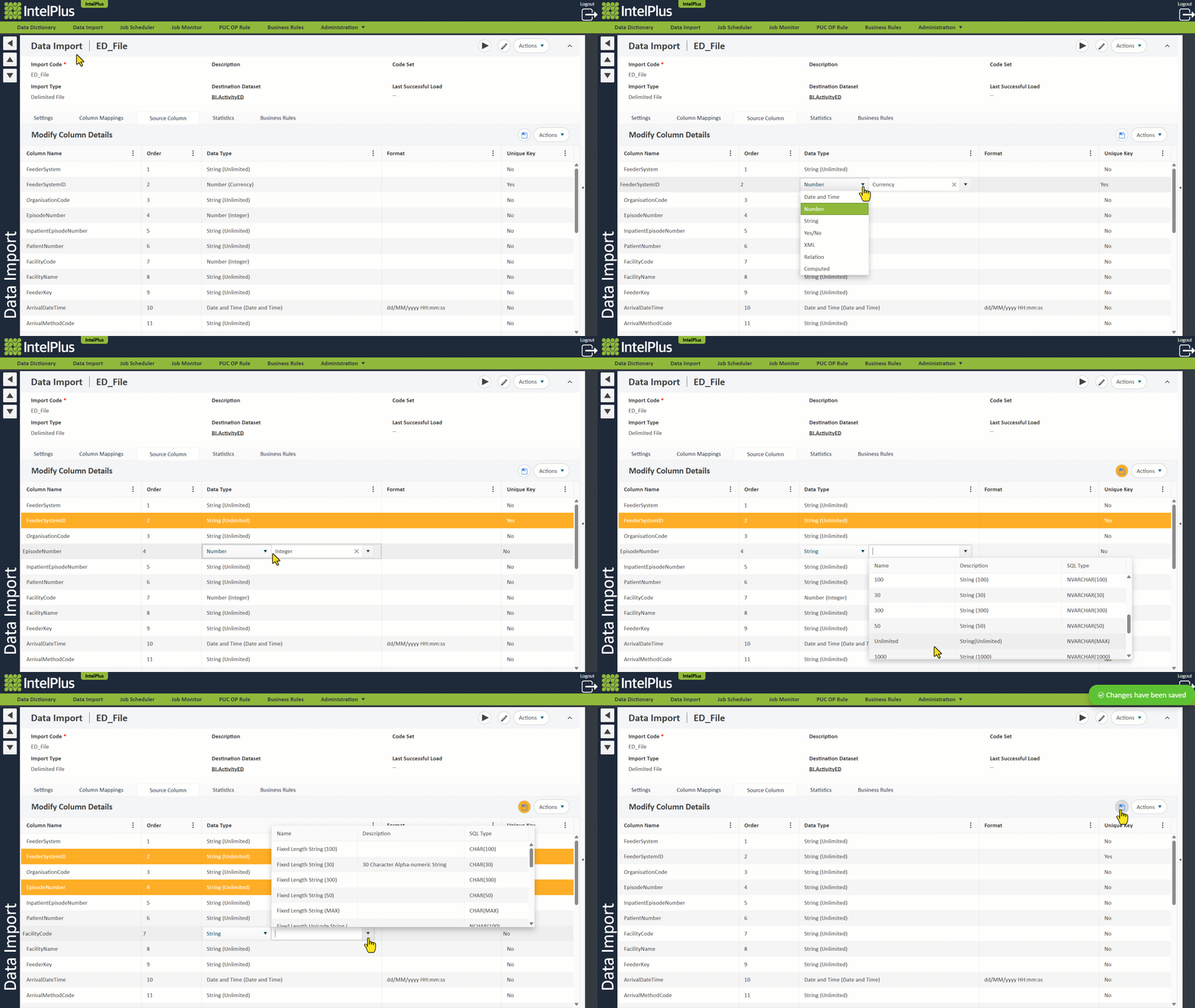
- Check the import’s Source Columns and note which columns are formatted as INTs. Then check the new file for any non-INT characters in that column as they will prevent the data from being loaded. If the characters are valid and that data is required, update the format of the Source Column. To do this:
Click on the Source Column tab of the Data Import screen and select String (Unlimited) as the Data Type. Click the Save icon. These steps are illustrated below.
- When there is a new column with data that is required:
- Save the file in the share file location.
- Press play on the import. In the Statistics tab, expand the run line and confirm that one file is found.
- Once the import has completed, refresh the source columns list found under Column Mappings. The new column should be visible in the Source Columns list.
- Map the destination column with the new column.
- Press play on the import.
- To import the new file, save the file in the share file location, then press play on the import.
- Review the imported data and perform the following tasks:
- Do a line count check. This includes the datastore load table, the datastore, and the load table.
- Check that the expected number is the same on all the tables.
- Check the load table for rejected data.
- Check that the destination table has received the new data, and check the posted date column.
Feedback
Copyright © 2026 CBS
—
Powered by 
Post your comment on this topic.